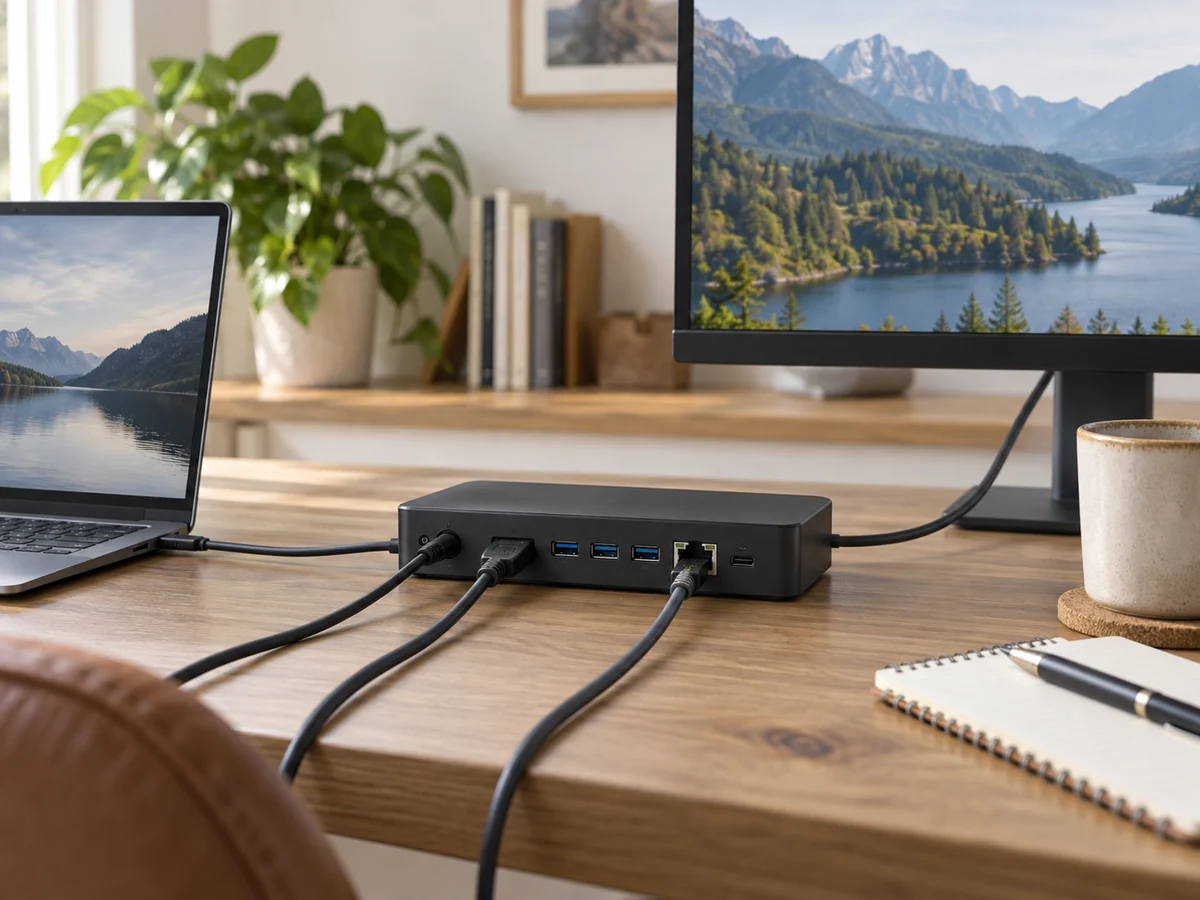
A docking station can turn a laptop into a convenient desk setup, but monitor support is a system question. The computer, operating system, dock, cables and displays all contribute to the result. Two display sockets on a dock do not by themselves establish that your laptop can run two independent external screens at the resolution you want. Begin with the exact computer model and a clear description of the intended layout. Then compare documented combinations instead of relying on a generic works-with-USB-C statement or a photograph of several connected monitors.
Write down the desired display layout
List each monitor's model, resolution, refresh rate and available inputs. Decide whether the screens should extend the desktop or mirror the same image. Include the laptop's own screen if it will stay in use. These details help expose mismatches that a simple monitor count misses. Read the computer maker's official external-display limits for the exact configuration, including any conditions involving power, lid position or software. Do not borrow the limits of a related laptop with a different chip or generation.
Match the dock's connection method
Check whether the dock uses the display capabilities of the host port or relies on another documented method and supporting software. Verify requirements for your operating system, especially on a managed work computer where software installation may be restricted. Apple advises checking adapter compatibility with both the Mac and display model. Treat that as a complete-chain question. A dock connector fitting the computer does not settle the number of independent displays or the supported modes.
Check cables and power separately
Map each display from dock output to monitor input and compare the required cable or adapter specifications. Avoid adding several unverified adapters to make an incompatible socket arrangement work. Check the dock's power supply and the power delivered to the laptop; those figures may differ. A compatible display setup can still be inconvenient if charging does not suit the computer's needs during use. Include all required cables and the power adapter when comparing the total purchase cost.
Plan the desk and verification
Measure dock placement, cable reach and the space behind monitors for connector bends. Look for an accessible power button or host cable if frequent disconnection is part of the routine. Keep a copy of the manufacturer's compatibility information and return terms. When the hardware arrives, verify the exact display modes and desktop layout in your normal applications. A successful basic connection is useful evidence, but it is not the same as confirming every intended resolution, refresh rate and simultaneous peripheral combination.
THE USEFUL TAKEAWAY
Buy a dock only after the desired display arrangement is documented across the whole chain. Exact computer limits, dock requirements and suitable cables provide a stronger basis than socket count. Include power and desk layout in the decision so the finished setup is both compatible and convenient to connect each day.
Further information
Manufacturer and official references for the details discussed. Check instructions for the exact product you are considering.